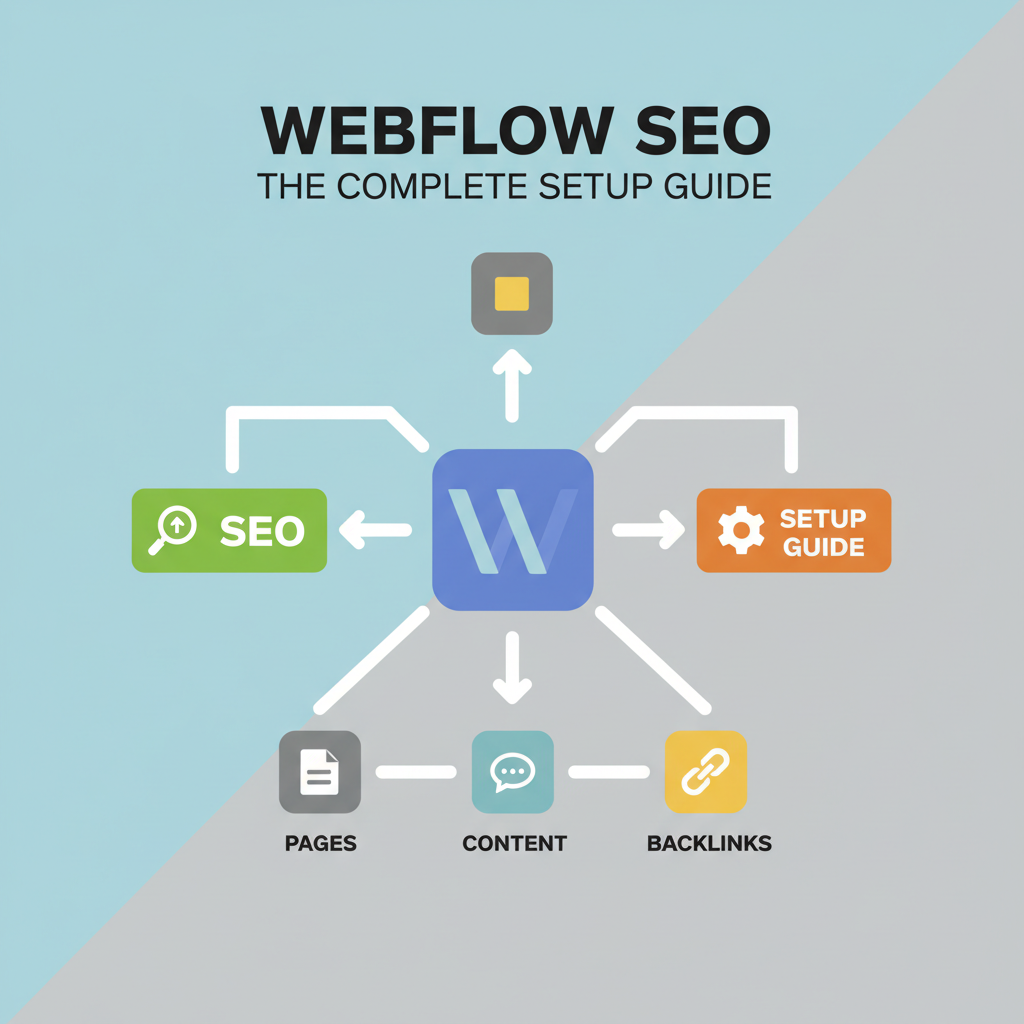
Yes, Webflow is good for SEO. It outputs clean, semantic HTML and gives you native control over technical elements like URLs, redirects, sitemaps, and schema without plugins. A complete Webflow SEO setup still requires you to configure four areas deliberately: global technical settings, on-page structure, CMS/Collection-level optimization, and verification plus AI-search readiness.
Webflow's advantage is that these controls live in the visual builder and site settings rather than in a plugin stack. The platform automatically generates clean, semantic markup and lets you manage core SEO mechanics without touching code, which removes much of the technical debt that drags down other no-code builders.
Classic on-page SEO like titles, headings, alt text, and internal linking remains necessary, but it is no longer sufficient. Google AI Overviews, ChatGPT, and Perplexity now parse structure, direct-answer formatting, and citations to decide what to surface and cite.
Get the four areas right and Webflow gives you both classic ranking foundations and a cleaner path to AI-answer visibility. From the big-picture verdict, the guide moves into the exact global settings to configure first.
Start at the foundation: the global settings that affect every page on the site. These workspace-level toggles control how crawlers discover your domain, which host is canonical, and how lean your delivered code is. Get them wrong and every page inherits the problem.
The checklist below reflects current Webflow Help Center paths. Complete it before editing individual page SEO.
| Setting | Where to Configure | Why It Matters |
|---|---|---|
| Disable webflow.io subdomain indexing | Site settings > SEO > Indexing > Staging indexing OFF | Prevents staging URL from competing with custom domain; publishes subdomain-only robots.txt blocking crawlers |
| Global canonical tag URL | Site settings > SEO > Global canonical tag URL | Combines base URL + page slug for every page to consolidate www vs non-www, http vs https, and parameter variants |
| Auto-generated XML sitemap | Site settings > SEO > Sitemap - Auto-generate sitemap ON | Keeps crawlers aware of publishable pages; works with per-page Sitemap indexing toggle for noindex control |
| Code minification | Site Settings > Publishing > Minify HTML / CSS / JS | Removes whitespace and comments site-wide to reduce payload size and improve crawl efficiency |
| Default domain consolidation | Site settings > Hosting > Advanced publishing options > Default domain | Forces 301 consolidation to primary host choice so link equity does not split between www and root |
| robots.txt and traffic control | Site settings > SEO > robots.txt + Indexing > Traffic control toggles | Broad allow/disallow for crawler groups; should not be used for sensitive content - use noindex toggle instead |
A few implementation details matter for crawl health:
Set the global canonical tag URL to your live base URL with protocol included and no trailing slash (e.g., https://www.yourdomain.com). Webflow combines that base with each page slug to output a full canonical on every page, which consolidates signals from http vs https, www vs root, and filtered URLs with parameters. If you set the canonical via GTM or other injection, do not also set it in Webflow to avoid duplicate tags.
Disable webflow.io subdomain indexing by going to Site settings > SEO > Indexing and setting Staging indexing to OFF, then publishing. Webflow then publishes a unique robots.txt only on the staging subdomain that tells search engines to ignore it, preventing the staging URL from competing with your custom domain.
That same panel also houses robots.txt rules and Traffic control toggles for search and AI bots. Blocking crawlers reduces bandwidth but also reduces visibility in both traditional and AI-powered search. For privacy, do not rely on robots.txt to hide sensitive URLs; use the per-page Sitemap indexing toggle, which adds <meta content="noindex" name="robots"> and removes the page from the auto-generated sitemap.
Once the site-wide foundation is solid, on-page elements on individual pages need the same rigor.
Global settings handle the site as a whole; every individual page needs its own on-page discipline on top of that.
In Webflow, every static page's title tag and meta description lives in Pages panel > Page settings > SEO settings. No SEO plugin, no theme file edit; unlike WordPress, where you install Yoast or Rank Math to get the same fields, Webflow exposes Title Tag and Meta Description natively per page.
For length, follow Webflow's current guidance: keep the title under 60 characters and write descriptions that won't get truncated in SERPs. Webflow University still teaches around 50 to 60 characters for titles and 150 to 160 for descriptions, which matches how Google actually displays snippets. Place the primary keyword near the start of the title, write a unique title and description per page that matches intent, and avoid stuffing. Webflow's docs explicitly warn to resist cramming keywords to rig results and note that unique titles per page significantly improve SEO.
Headings are your content outline. Use one H1 per page for the primary topic, then nest H2s for sections and H3-H4s for subsections. Webflow doesn't enforce hierarchy, so you must set it manually in the Designer. A clean H1 > H2 > H3 structure helps both readers and search crawlers parse relevance and answer-engine chunks.
Image alt text is set in the image settings panel and can be generated or audited in bulk. The Audit panel checks for missing alt text, page titles, meta descriptions, and schema markup sitewide or for the current page. When it flags gaps, you can click Settings next to an image or Open page settings for metadata, then use Generate to have Webflow AI draft alt text, title, and description from page content. Review everything before publishing, since Webflow recommends checking AI output for accuracy.
On-page elements matter for one page at a time, but Webflow sites built on Collections need this to scale automatically.
A blog or store with hundreds of Collection items needs on-page discipline handled systematically, not page-by-page.

In Webflow, every Collection uses a Template Page for SEO. Instead of editing each post, you define a pattern that all pages in a Collection will automatically use for title and description. Webflow confirms you get complete control over titles and descriptions for static and dynamic content and can automate them using Collection fields.
Template bloat compounds. One unused combo class duplicated across 300 posts still loads its CSS. Audit Style Manager monthly for unused classes, limit Interactions to the template level instead of per-item animations, and avoid nesting multiple Collection Lists on the Template Page. For blog images, convert uploads to WebP/AVIF before adding to the CMS and reuse the same image field across thumbnail and open-graph to avoid duplicate assets. That keeps Largest Contentful Paint stable as the Collection grows.
For teams that publish often, this manual wiring gets repetitive. Tools like HarperFlow exist specifically to automate the CMS-level step (researching, writing, and publishing Collection-ready articles with citation structure already populated) so new items don't ship with missing SEO fields.
Dynamic SEO fields prevent metadata gaps across hundreds of Collection pages, but only if every new post actually populates them, whether manually or through automation.
With content structured for scale, the next step is proving it's actually being crawled, indexed, and increasingly, read by AI systems.
Structuring content at scale is only half the job. You also need to confirm it's discoverable, and increasingly, quotable by AI systems.
Start with ownership. Webflow documents verification with Google Search Console using the HTML tag method: add your site as URL prefix, copy only the verification ID from the meta tag (the string after content=), paste it in Site Settings > SEO > Google site Verification ID, save, publish, then click Verify in Search Console in the HTML tag section Google verification guide.
Once verified, submit your live sitemap in Search Console under Indexing > Sitemaps using your custom domain's sitemap.xml to speed up discovery and surface crawl errors.
When slugs change, preserve authority with 301s in Site Settings > Hosting > Advanced > 301 redirects. Note Webflow's constraint: redirects are relative to the root domain and don't automatically cover localized paths, so a rule for /old-url won't redirect /es/old-url without a separate rule per locale subdirectory.
If you publish in multiple languages with Webflow Localization, much of the SEO signaling is automatic. With an auto-generated sitemap and automatic generation set to on, Webflow will automatically include hreflang tags for all static and dynamic pages, and each page head includes its localized variants to help search engines serve the right version. You can toggle generation or set a custom base URL in Localize panel > SEO.
Verification and sitemaps get you indexed; structure gets you cited by ChatGPT, Perplexity, and Google AI Overviews. These systems prioritize content they can parse, attribute, and quote with confidence.
In Webflow, add schema via page settings or embeds: Article with author and datePublished, FAQPage for Q&A blocks, and HowTo for step sequences. Pair that with direct-answer-first formatting: lead each section with a concise 40-60 word answer before elaboration so models can lift a self-contained definition. Build real FAQ components rather than plain paragraphs, cite primary sources inline with links and publication dates, and maintain intentional internal linking between related Collection items to establish topical depth.
That's the operational bottleneck most teams hit at scale, which is why teams use an automation layer like HarperFlow to generate citation-ready blog posts with structured FAQs, direct-answer blocks, and sourced claims already mapped to Webflow CMS fields.
With both technical SEO and AI-citation structure covered, the final question is how to prioritize and maintain all of this going forward.
The last question is simply: what should you actually act on first, and what needs to become routine.
Prioritize by site stage, not checklist order:
New site (0-20 pages): Lock down the foundation before you publish more. Global indexing controls, sitemap and canonical behavior, plus clean page-level titles, meta descriptions, and heading structure. If these are off, everything built on top underperforms.
Growing blog or CMS-driven site: Shift focus to scale. Map dynamic SEO fields for Collections, tighten internal linking between related posts, and format articles for citation - direct answers at the top, FAQs built from real queries, and claims backed by sources. This is where most Webflow sites stall because one-off page fixes do not scale.
Established site (100+ pages, steady traffic): Move to maintenance. Watch Search Console for coverage issues and redirect chains, keep image payloads and Core Web Vitals stable, and refresh older posts where titles are vague, intros are thin, or data is dated.
Build a lightweight cadence you can keep: quarterly technical sweep for broken links and redirect hygiene, monthly sitemap and indexation check after CMS publishing batches, and a quarterly content audit to update facts, FAQs, and structured markup.
Verdict: Webflow gives you the technical capability for strong SEO out of the box. Whether it compounds into AI-search visibility depends on whether your content stays structured and current.
Technical Webflow SEO and AI-search-ready structure are now the same discipline. A clean, well-described site that consistently publishes current, evidence-backed content gets crawled, understood, and cited. For teams running Webflow blogs at volume, HarperFlow is built to automate that second half, keeping collection-level metadata, direct-answer formatting, and source citations consistent without hand-editing every post.
No, choose one method to avoid duplicate canonical tags. If you use Webflow, set it at Site settings > SEO > Global canonical tag URL with protocol included, matching www if your default domain uses it, and no trailing slash. Webflow then combines that base with each page slug to output the full canonical.
Use the per-page Sitemap indexing toggle to noindex it, not broad robots.txt rules. That toggle adds <meta content="noindex" name="robots"> and excludes the page from sitemap. Do not rely on robots.txt to hide sensitive URLs.
No, it only affects your webflow.io subdomain. When you set Staging indexing to off in Site settings > SEO > Indexing and publish, Webflow publishes a unique robots.txt only on the subdomain that tells search engines to ignore that domain. Your custom domain remains crawlable.
No. 301 redirects are relative to your root domain and won't apply to localized slugs or subdirectories. If you have /es/ or /fr/ locales, you need a separate redirect rule for each localized path like /es/old-url.
Yes, with auto-generation enabled. When auto-generated sitemap with automatic generation is on, Webflow will automatically include hreflang tags for all static and dynamic pages. You can toggle generation or set a custom base URL in Localize panel > SEO.
Use the Collection Template dynamic pattern instead of editing items one by one. Go to Pages panel > Page settings > SEO settings, click Add field, and define a pattern that all pages in a Collection will automatically use for titles and descriptions. Webflow gives you complete control over titles and descriptions for static and dynamic content via Collection fields.
Keep titles under 60 characters and ideally around 50 to 60 characters, with descriptions between 150 to 160 characters to avoid truncation in SERPs. Write a unique title per page with the primary keyword near the start.
Use the Audit panel in the Designer. It checks for missing image alt text, page titles, meta descriptions, and schema markup sitewide or for the current page and lets you jump to fix them. You can generate drafts with Webflow AI but review for accuracy before publishing.