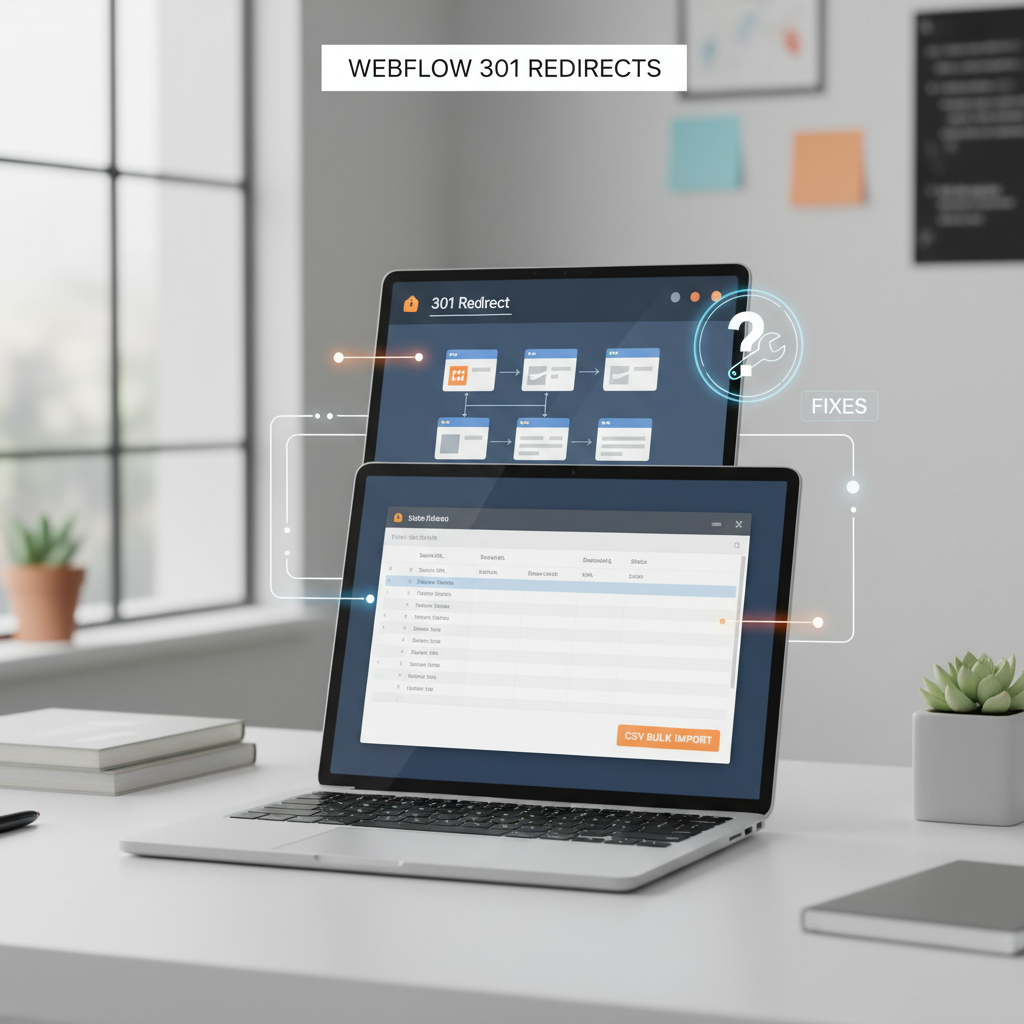
In Webflow, 301 redirects are set up under Site Settings > Publishing > 301 Redirects, where you map an old path to a new one, click Add redirect path, and publish the site. The redirect does nothing until you publish. The feature requires a paid Site plan or a Workspace with a paid Workspace plan, and the mapping only goes live once a publish completes.
That publish requirement is the part people miss. The rule is saved in the Publishing panel, but it does not take effect on the live domain until a publish completes. In practice you map /old-url to /new-url or /entirely/new-url/structure and then push live.
To complete one redirect end to end:
/old-url). The value is relative to your root domain./new-url or a full URL for an external domain)After publishing, test by opening the old URL in a new browser tab. It should land on the new destination. If you changed a slug in Page settings and checked "Permanently redirect the old URL to this new one," Webflow creates the same entry automatically for you in the 301 redirects list.
One-off redirects are simple. The friction starts at scale, or when a redirect silently fails.
A saved redirect that does nothing is almost always a slug conflict: Webflow checks for a live page at the old path before it checks your redirect list, and if a static page or Collection item still occupies that path, the rule is ignored with no warning in the editor. According to Webflow's redirect documentation, static pages must be removed from that path first.
The fix sequence depends on page type:
Fix the occupancy, then re-publish. Only after publishing does the redirect become active.
A redirect chain happens when URL A redirects to B and B redirects to C. Each hop adds latency and dilutes crawl efficiency. Fix it by pointing the original rule directly to the final destination.
A redirect loop happens when rules point back to each other and the browser never lands. Audit your list for circular entries (A to B, B to A) and remove or correct one of them.
After any fix, verify the live behavior. Open the old URL on your custom domain, open DevTools > Network, and confirm the response status is 301, not 200 or 302. Re-test after each publish, since a cached 301 in your browser can hide a broken rule.
A redirect rule that saves without error can still fail silently if the old slug is occupied — always confirm the old page is deleted, archived, or renamed before assuming the rule works.
Wildcard and CSV bulk redirects let you migrate large batches of URLs in one operation: wildcards use (.*) capture groups to collapse entire folders into a new structure, while a two-column CSV import replaces your whole redirect list at once, subject to a file size limit.
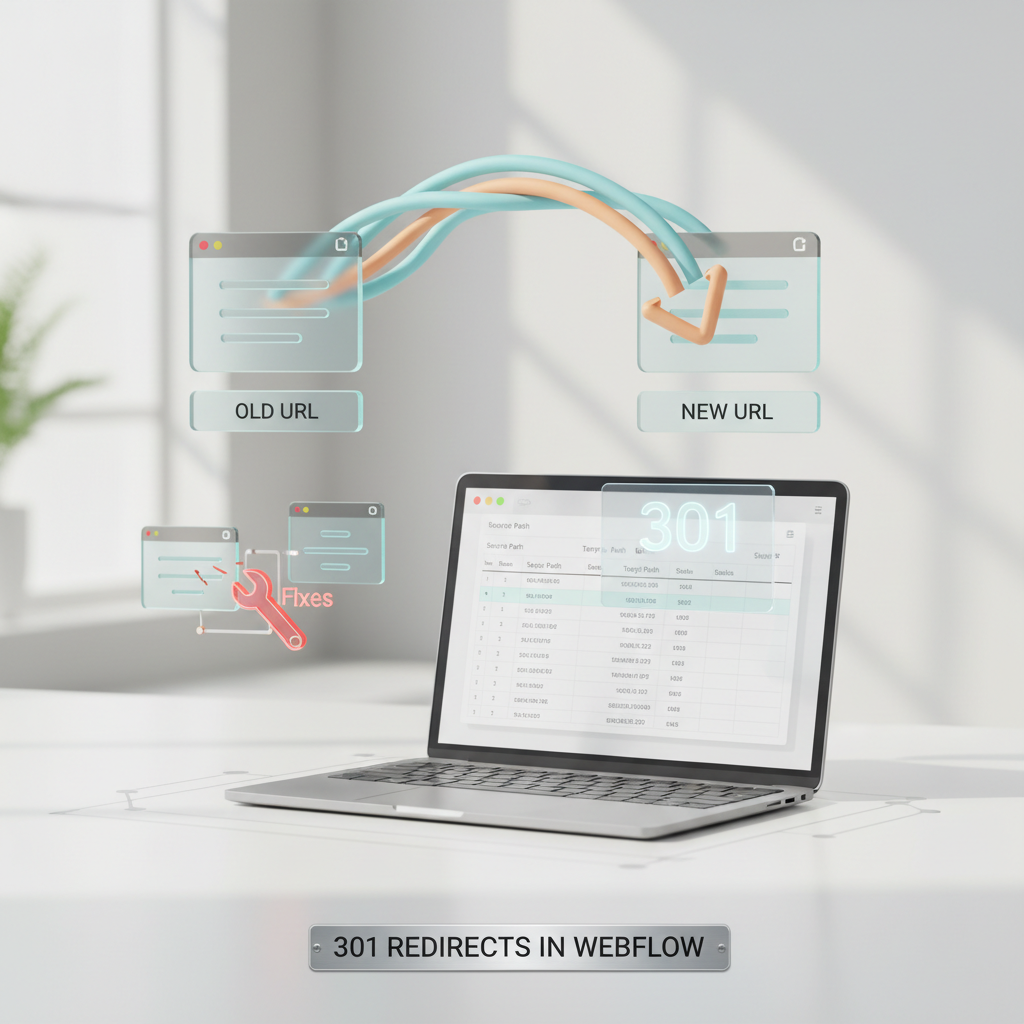
Slug conflicts explain why individual redirects fail. Migrations fail differently, at volume. The common misconception is that you can list a few top pages and handle the rest later, or that a new CSV will append to what you already have. In Webflow it does not, and trying to map every old URL by hand breaks down once you hit category, tag, collection, or product permutations.
Webflow's redirect engine uses a limited pseudo-regex where (.*) captures one path segment and %1, %2 inject that segment into the destination. This is how you collapse an entire folder into a new structure with one rule, for example, a single-capture pattern that sends everything under an old folder to a corresponding path under a new structure, or a two-capture pattern that preserves both a category and a slug when restructuring a blog into an articles section.
That logic translates directly to platform migrations:
/blog/(.*) -> /insights/%1 catches /blog/2023/05/my-post variations, while /category/(.*) and /tag/(.*) let you fold legacy archives into /topics/%1./products/(.*) -> /shop/%1 and /collections/(.*) -> /shop-collections/%1 handle the two default Shopify root folders without enumerating every SKU.The (.*) stops at a / delimiter, so it matches one segment at a time. For full-path preservation, use a single capture group rather than chaining multiple wildcards, which wildcard pattern documentation shows as the intended approach.
For larger maps, use Import/export 301 redirects. Your file must have two columns: old path and redirect-to path. Webflow publishes the format explicitly and notes the file limit in the same guide.
Critical operational detail: new imports overwrite all existing redirects. If you import a large file, any redirects already live on the site are removed. The safe sequence is export the current list as backup, merge your new WordPress or Shopify mapping into that same file, de-duplicate, then import and publish.
Before you generate the CSV, normalize your source URLs. Export URLs from WordPress via Redirection plugin or Yoast crawl, and from Shopify via a sitemap or URL export app, strip domain and query strings unless you are intentionally matching ? patterns, convert to relative paths with leading slash, and test wildcard groups on a handful of samples first. Webflow also notes a CSV support update confirming the overwrite behavior, and community testing shows performance degrades as the list grows very large, so keep the file lean and prune 404s that no longer receive traffic.
Getting the mechanics right only matters because of what a 301 is actually protecting: accumulated SEO value.
301 redirects in Webflow preserve SEO rankings because Google treats a 301 permanent redirect as a canonicalization signal that consolidates ranking signals from the old URL to the new URL. Google Search Central documents that a 301 status code means a page has permanently moved to a new location and recommends it as the best practice for URL changes.
The mechanics of bulk redirects only matter if they actually protect what a business cares about: rankings and traffic. The preservation is not automatic, and it is not instant.
What Google officially confirms:
What is practitioner-observed, not guaranteed by Google:
Re-crawling and consolidation take time. Search engines must discover each redirect, process the canonical choice, and re-index. Independent SEO analyses commonly describe this as several weeks for search engines to fully reindex the new URLs and pass authority, with higher-authority or deeper pages taking longer. Treat any timeframe as an estimate, not a Google promise, and keep 301s in place well beyond the initial re-index.
Why status code choice matters:
Use 301 for permanent moves like slug changes, site redesigns, or domain migrations because it tells both users and search engines the old URL is retired. Use 302 only when the move is truly temporary, such as maintenance or A/B testing, because Google will keep the old URL eligible as canonical.
Why chains and loops hurt:
A redirect chain (A -> B -> C) forces Googlebot through multiple hops. Each extra hop wastes crawl budget and weakens the clarity of the canonical signal. If a chain breaks or loops, equity stops consolidating and the target can drop from the index. Point every old URL directly to its final destination in one hop and keep the mapping one-to-one.
Redirect problems in Webflow fall into five repeatable failure modes: a rule looks saved but the old URL doesn't redirect, it 404s, it loops, it disappears after a CSV import, or it only works on staging.
You publish, click the old slug, and nothing happens. That pattern is almost always a conflict or cache issue, not a syntax bug. Use the lookup below as your first pass before rewriting rules.
| Symptom | Likely Cause | Fix |
|---|---|---|
| Redirect saved but old URL still serves the old page after publish | Old slug still occupied by live static page or CMS item, or site not republished to target domain | Archive, draft, or delete the occupying page/item, confirm old path starts with /, then publish to all domains |
| Old URL returns 404 instead of redirecting | Destination path typo or destination page unpublished or deleted | Verify destination exists and starts with /, publish destination page, test with header checker for 301 |
| Browser shows infinite loop or ERR_TOO_MANY_REDIRECTS | Rule points to itself or two rules form a circle A to B and B to A, or wildcard captures its own destination | Remove self-referential rule, delete conflicting reverse rule, add specific exception before wildcard |
| CSV import removed previously working redirects | CSV import overwrites all existing redirects and has a 16MB file limit | Export current redirects as backup first, merge new rows into exported file locally, then import combined file |
| Redirect works on webflow.io subdomain but not on custom domain | Custom domain not published or CDN/proxy cache or browser cache serving stale response | Publish to custom domain, purge Cloudflare/CDN cache, hard refresh and test in incognito with 301 checker |
For "not applying after publish," the fix sequence matters: remove the occupant, then save the redirect, then publish. Emptying the page slot first lets Webflow honor the rule.
For loops, check the destination against every existing rule, including wildcards that may capture their own target. A simple header check that shows 301 vs 302 and the final Location confirms whether the loop is in Webflow or in a proxy like Cloudflare.
For the CSV case, remember that Webflow's import replaces rather than adds to what's already live, so always export a backup, merge locally, and re-import the combined file. Once redirects are firing correctly and rankings are protected, the next priority is what replaces that traffic long-term.
Redirects preserve the traffic you already earned during a redesign or replatform, but they do not create new demand by themselves. Treat the first week after going live as an audit window, not a finish line.
HarperFlow publishes highly structured articles featuring FAQs, data tables, and direct-answer blocks that meet the rigorous citation standards required by AI search engines. By continuously auditing and improving your content through AI answer analytics, HarperFlow helps your site build long-term authority and visibility that outlasts ad-dependent strategies.
Once that sheet is green, preservation is done. Growth requires a different motion: sustained publishing that builds topical depth over time. That means prioritizing topics your customers already ask about, with clear structure and reliable sourcing.
If your team cannot staff that publishing cadence, one option is automation built for Webflow. HarperFlow researches, writes, and publishes source-cited articles directly to your CMS, keeping visibility compounding after the migration equity is secured.
Webflow serves a live page before it checks your redirect list, so the rule is ignored if the old slug is still occupied. Delete the static page, save it as a draft, or change its slug, then publish. For Collection items, archive, unpublish, draft, or rename the item first, then re-publish.
You do not have to delete it permanently. For static pages you can delete, save as a draft, or change the slug to free the path. For Collection items you can also archive or unpublish, which keeps CMS data intact while taking the URL offline.
Yes. The Redirect to path field accepts a relative path like /new-url or a full absolute URL for another domain. After you click Add redirect path, publish the site so the rule goes live on your custom domain.
A new CSV import overwrites all existing redirects, it does not append. That means your current list is removed and replaced by the file contents. Export your live list first, merge new rows locally, then import the combined file.
Yes, Webflow limits CSV imports for 301 redirects to 16MB. If your file is near that limit, prune unused rows, remove duplicates, and consolidate folder moves into wildcard rules. Always keep a backup export before importing.
In Webflow (.*) captures one path segment up to the next slash, and %1 inserts that captured value into the destination. For example /blog/(.*) -> /insights/%1 sends /blog/my-post to /insights/my-post. Use a single capture when you want to preserve the remaining path.
Google treats a 301 as a signal that a page has permanently moved to a new location and that the new target should be canonical. It follows the redirect and shows the new target in search results. Consolidation takes several weeks, so keep 301s in place long after launch.
Use 301 for permanent changes like slug updates, redesigns, or domain migrations because it tells search engines the old URL is retired. Use 302 only when the move is truly temporary, such as maintenance, since Google will continue to show the source page in search results.